
>
Sage Accounts Invalid Directory Path
Written by: Netzen on


After you perform upgrades of Sage Accounts software (e.g V24 or V25) you may experience a problem within the initial ‘Select Company’ window that complains your Data path is invalid.
The exact error message alongside your company name would be something like: **** Invalid Company Directory Path ****’.
How to fix this issue:
First check the following locations and ensure they exist, depending on your version, see below:
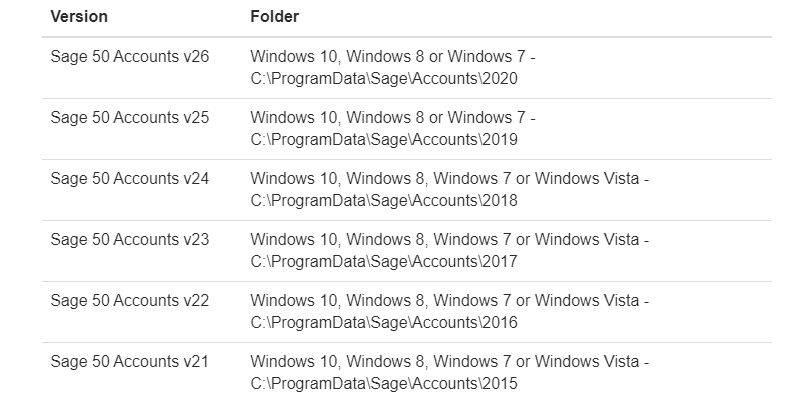
Once you have found the path that corrresponds to your version of sage, there should be a file called ‘COMPANY’ in the directory, right click it and Open With > Notepad.
This will tell you where Sage thinks your data is. Validate this path exists by browsing to it or adjust the path as necessary.
If your Sage data is on a network:
- Validate that the path in the COMPANY file is accessible by checking mapped drives work through Windows Explorer.
- If the Network drive exists and Sage still complains the data directory is invalid, try mapping the sage data by IP not Netbios name. Edit the company file to the \\IP-address rather than \\COMPUTER-NAME for the data path. Often Sage fails to resolve Netbios names and using an IP connects the software directly to the correct PC/Server.
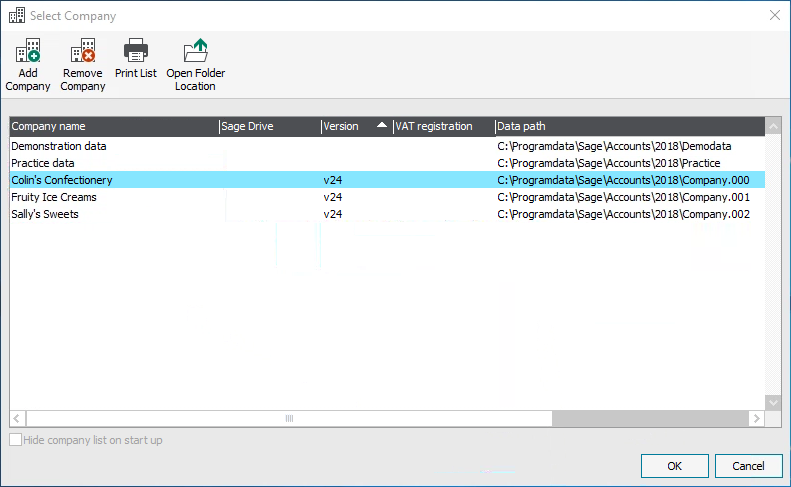
A successful ‘select company’ window should look like the below showing the data path to the data, i.e C:\ if on local system or another drive letter if the data is shared from some other system on the network.
About Netzen
Netzen Solutions Ltd is a privately held IT Support company formed in 2005 with a primary focus on providing the highest quality business IT support in the UK. Netzen provide business IT Support & Services for small to medium sized companies.